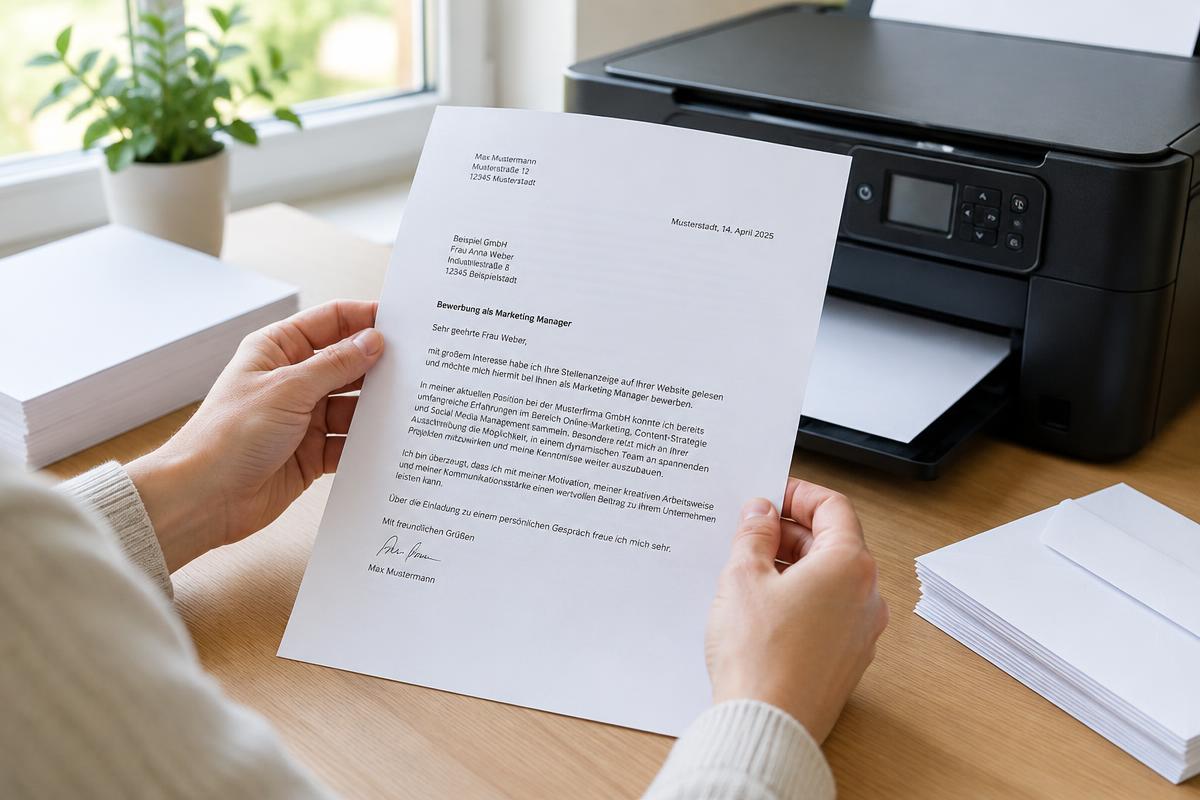
Mistake 1: "Fit to page" shrinks everything
Many PDF viewers automatically scale the document to the printable area. The result: text shrinks to 90 percent and the margins no longer match the DIN 5008 layout. Choose "Actual size" / 100% instead — a correctly created A4 PDF then fits exactly.
Mistake 2: Wrong paper format
If the printer is set to "Letter" (the US format), an A4 document gets clipped at top and bottom. Before printing, check that DIN A4 (210 × 297 mm) is selected in both the print dialog and the printer settings.
Mistake 3: Blank pages from section breaks
Word documents exported as PDF sometimes contain hidden blank pages. Scroll through the whole PDF before printing and print a specific page range instead of "all pages".
Checklist before printing
- Open the print preview and inspect every page.
- Set scaling to 100%, format to A4.
- Choose black-and-white printing if the letter has no colour — saves ink.
- Print one test sheet before wasting ten pages.
- Hold the printout against the light: sender line and address must land in the envelope window.
When it should simply be right
If you write letters directly in the browser, you skip the topic entirely: the online editor formats according to DIN 5008, generates the PDF automatically in the right format, and the print service handles the rest. No scaling errors, no blank pages, no window-envelope puzzle.